The Synergy Multi-Monitor Rabbit Hole I Fell Into So You Don't Have To
I am a person with too many computers. This is not a flex — it’s a confession. By day I’m a Principal SRE, which means I spend most of my waking hours keeping other people’s infrastructure from falling over. By night (and early morning, and weekends) I run a small indie app and Web studio, because apparently I find sleep overrated. The physical consequence of this lifestyle is a desk that looks like a NASA control center designed by someone with a Costco membership and a problem with monitor stands.
The setup: a MacBook Air as my primary machine, sharing a curved LG ultrawide in Picture-by-Picture mode with a work-issued MacBook Pro, with a Samsung 27” rounding out the right side of the main workspace. Above the Samsung, on a vertical monitor arm, sits another LG ultrawide — also in PbP — shared by two Mac Mini servers I use for builds and home infrastructure. Five physical machines. Seven logical displays. One keyboard and mouse, ideally.
That last part is where Synergy comes in.
What Synergy Is and Why You’d Want It
Synergy is a KVM-without-the-VM tool: one keyboard and mouse, multiple computers, cursor transitions between them by hitting screen edges just like moving between monitors on a single machine. It’s been around since 2001 in various forms — I’ve been using it since around 2010 — costs a modest annual fee for the current Synergy 3 release, and works across macOS, Windows, and Linux. For a mixed-machine desk it’s essentially irreplaceable.
The configuration model is simple in concept: you define screens, then define links — directional relationships between screen edges. Move off the right edge of screen A, arrive at the left edge of screen B. You can even specify percentage ranges, so only part of an edge triggers a transition. This sounds like exactly what you’d need for a complex layout.
It is, with one significant caveat that took me an embarrassing amount of time to fully internalize.
The “One Big Screen” Problem
Here’s the thing Synergy’s own documentation will tell you plainly, if you read it carefully enough:
Synergy sees all the monitors on one computer as a single large virtual screen.
Every display connected to a given machine gets flattened into one logical rectangle. Synergy doesn’t know about individual monitors — it only knows the combined pixel boundary of everything macOS reports as one desktop. This is explicitly acknowledged as a design flaw on their roadmap. For symmetric setups — two monitors side by side, or a 2x2 grid — this is fine. For anything else, the math gets interesting.
My layout is not symmetric.
( LG wide PbP ) [ BUILD | MEDIA ][ Work MBP ] [ Work MBP | MBA ] [ MBA ] [ MBA ] ( LG wide PbP ) ( Samsung )The servers (BUILD and MEDIA) share an LG display, mounted physically above the Samsung. Naturally, I configured Synergy to put them there. Dragged the blocks into position in the GUI, saved the config, tried to push my cursor upward from the Samsung.
Nothing.
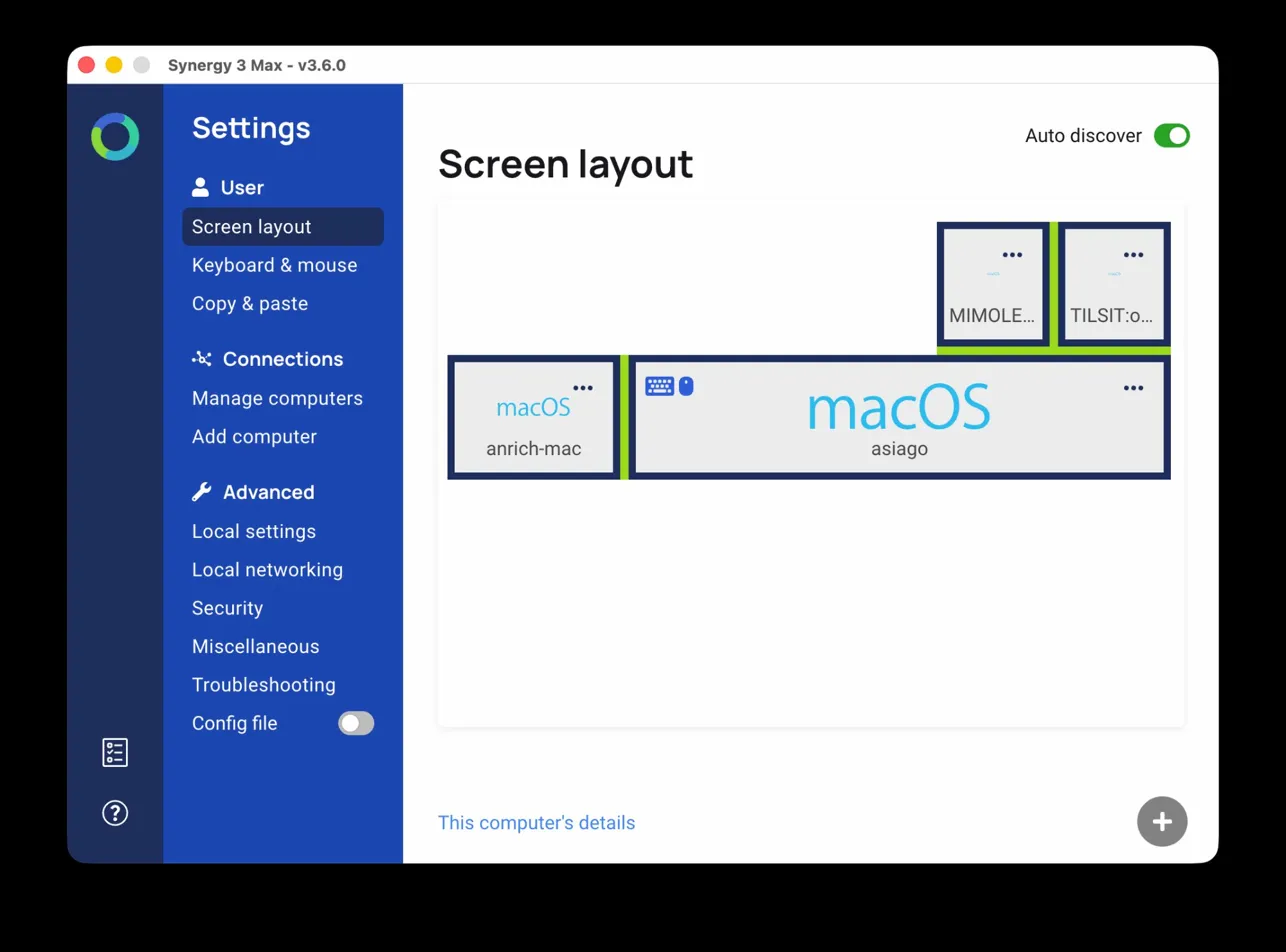 Synergy’s layout editor with servers above the Samsung — looks right, doesn’t work.
The cursor hit the top of the Samsung and stopped dead, like it had run into a wall. Worked fine horizontally. Worked fine going left. Just… not up.
After enough muttering, I started actually looking at the numbers.
Why the Top Edge Never Fires
displayplacer list (install via brew install displayplacer) gives you the actual logical coordinates macOS uses for each display. The relevant numbers for my MBA’s virtual screen:
- LG PbP half: origin
(-1720, -678), resolution1720x1440 - MBA built-in: origin
(0, 0), resolution1440x932 - Samsung 27”: origin
(1440, -299), resolution1920x1080
The virtual screen’s top boundary is at y = -678 — the top of the LG PbP half, which sits higher than everything else because of how macOS aligns the displays given their physical height difference.
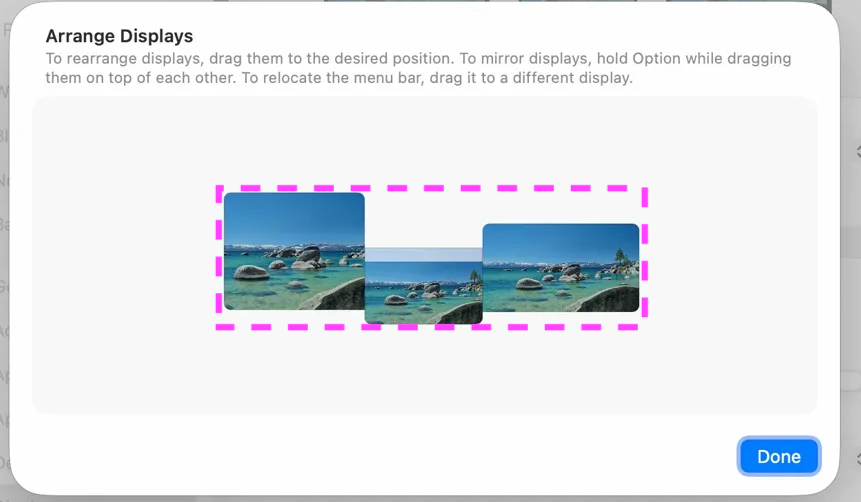 The MBA’s display arrangement — the LG half extends well above the Samsung.
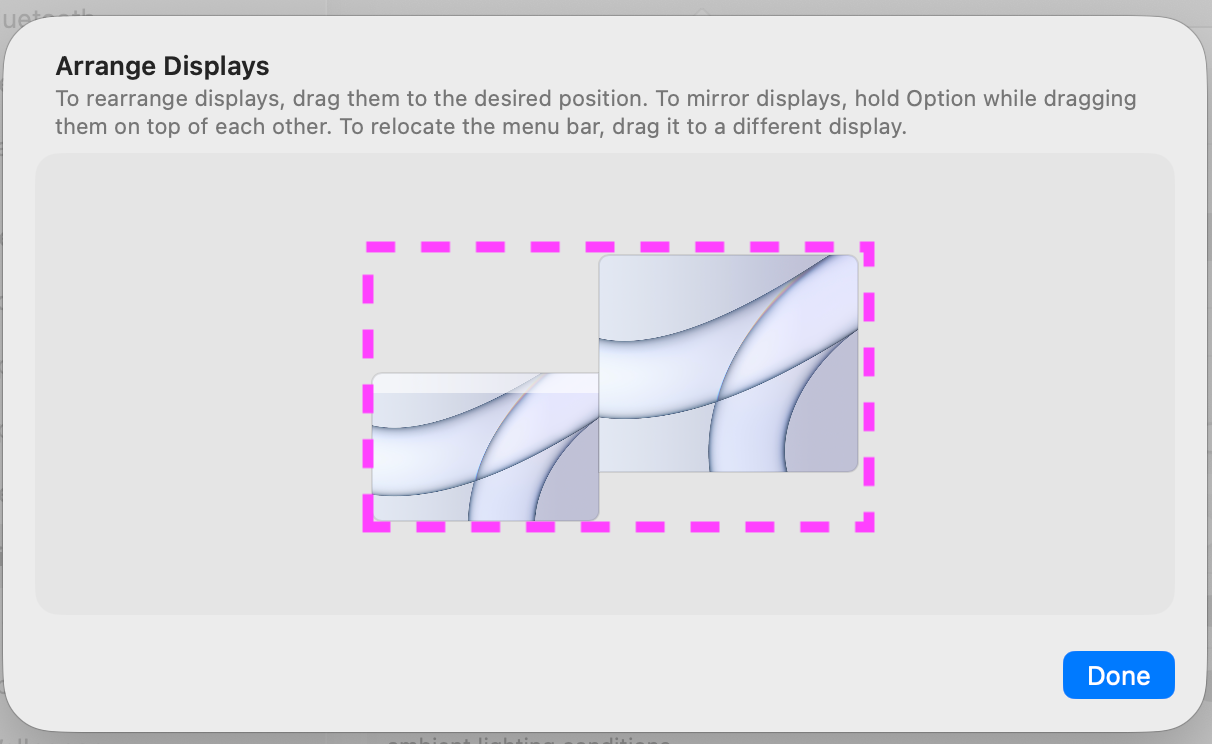 The work MBP’s display arrangement, for the full picture.
The Samsung’s top edge is at y = -299.
When my cursor hits the Samsung’s top and macOS stops it, the cursor is sitting at y = -299. Synergy’s virtual screen extends further upward to y = -678. From Synergy’s perspective, the cursor is somewhere around 23% from the top of the virtual screen — not at the edge at all. The “up” transition requires the cursor to reach 0%. It never does.
While troubleshooting, I tried moving the servers to the right of the MBA in Synergy’s layout editor. That worked immediately — the right edge of the virtual screen is a true boundary, so right(0,100) transitions cleanly with no geometry trap. But having the servers “to the right” when they physically sit above the desk wasn’t a satisfying answer either.
The Fix (and the Elegant Trap Before It)
My first instinct was to realign the display origins in macOS — bring the LG PbP’s top down to match the Samsung’s top at y = -299, making that the virtual screen boundary. This would work mechanically: the Samsung’s top would now be reachable by Synergy.
The problem: this would break the natural horizontal cursor travel between the LG PbP and the MBA. Because those displays are physically at different heights, their macOS positions are deliberately offset. Forcing their tops to align would make the cursor “jump” when crossing between them, which is worse than the original problem.
The actual solution is simpler and requires only a small mental model adjustment: put the servers above the LG PbP half instead of above the Samsung.
The LG PbP’s top is the virtual screen’s top boundary. The cursor can reach it. The math:
The two servers each occupy half the LG ultrawide, which is roughly the same width as the Samsung. That puts them over approximately the left third of the virtual screen — close enough for Synergy’s edge snapping to handle.
The Synergy config links section:
section: links macbook-air: up(0,22) = build(0,100) up(22,44) = media(0,100) left(0,100) = work-mac(0,100) build: down(0,100) = macbook-air(0,22) right(0,100) = media(0,100) media: down(0,100) = macbook-air(22,44) left(0,100) = build(0,100) work-mac: right(0,100) = macbook-air(0,100)end(The GUI snapped to 22/44 when dragging — close enough to land within the LG PbP’s actual range.)
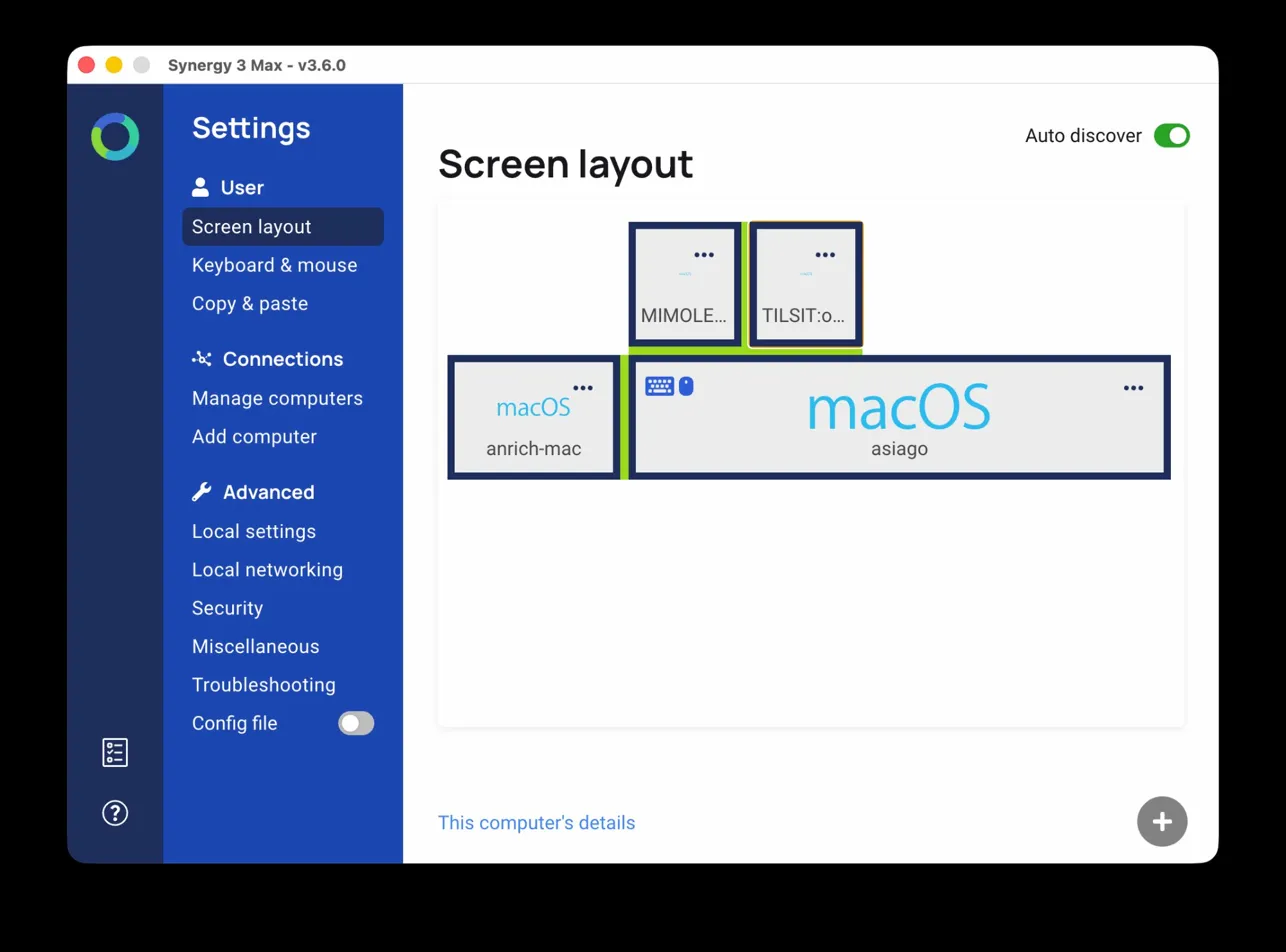 After: servers above the LG PbP half. The cursor can actually reach this boundary.
The mental model I now operate with: the servers live “above the left monitor.” Not above the Samsung where they physically sit. This is a small lie I tell myself that costs nothing and makes everything work.
The Hotkey Investigation (or: A Series of Unfortunate Dead Ends)
With the edge transition working, I wanted a fallback: keyboard shortcuts to jump directly to each server regardless of cursor position. Synergy supports switchToScreen hotkeys in the options section of the config. I configured them, hit the shortcut from my Keychron USB-C keyboard. Nothing.
After confirming with Synergy support that the config syntax was correct, I tried the same shortcut from the MacBook Air’s built-in keyboard. It worked immediately.
The reason is subtle: macOS grants its own hardware a privileged input path that bypasses the HID permission sandbox. External USB keyboards are subject to the Input Monitoring restriction. Synergy wasn’t listed under System Settings → Privacy & Security → Input Monitoring, so hotkeys from the Keychron were silently dropped — no error in Synergy’s logs, no indication anything was wrong. The fix: add Synergy to Input Monitoring and restart Synergy. Hotkeys now work from the Keychron too.
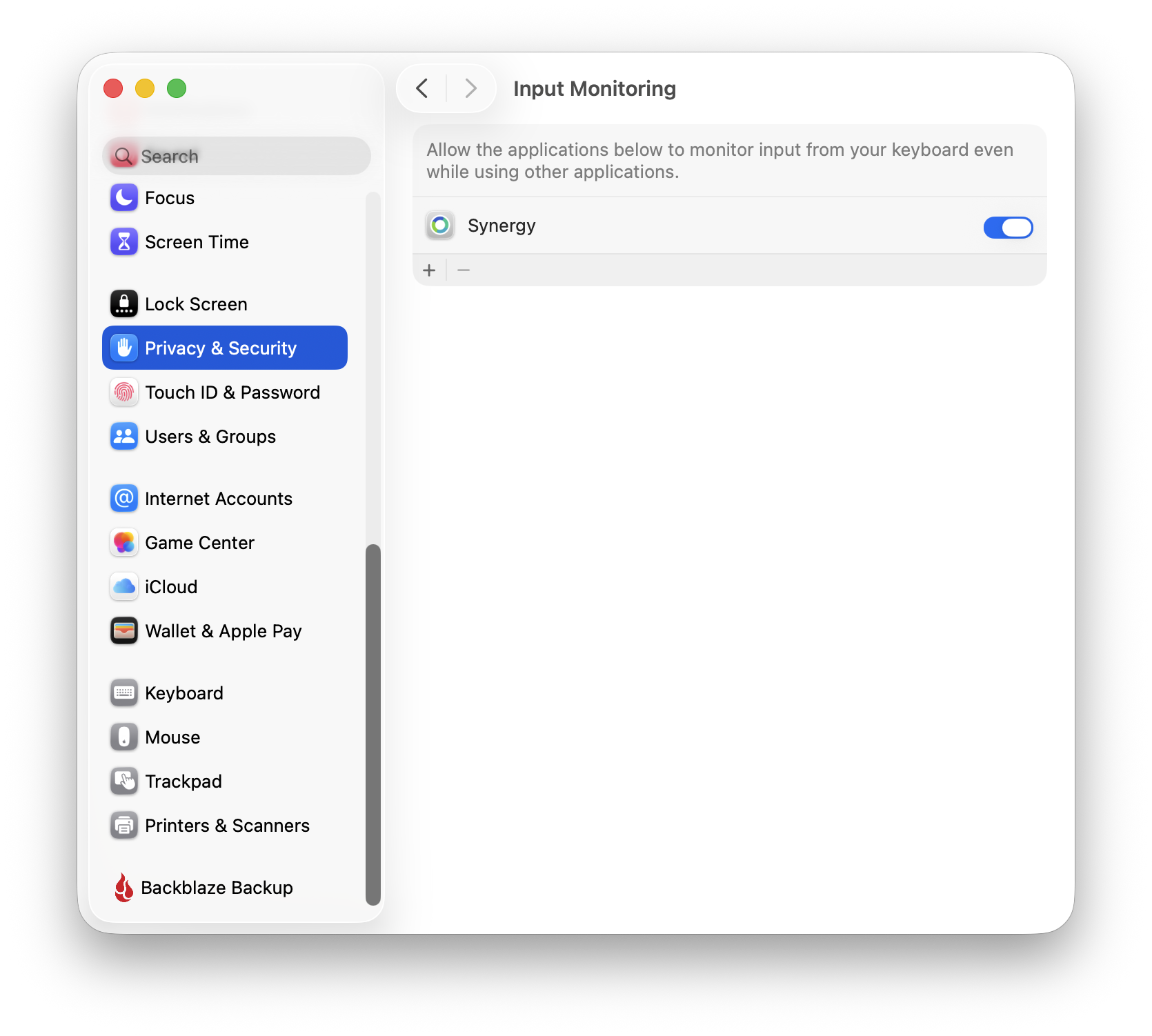 Synergy needs Input Monitoring permission for external keyboard hotkeys to work.
Can We Automate Edge Transitions to the Real Location?
The working setup has the servers positioned above the LG PbP in Synergy’s virtual layout — not above the Samsung where they physically live. To reach them with the cursor, you move to the upper-left portion of the desk rather than pushing up from the Samsung. It works, but it’s not intuitive.
A solution I spent too long on: detect when the cursor hits the Samsung’s top edge and programmatically fire the hotkey. Hammerspoon can watch cursor position. When the cursor enters a narrow strip at the top of the Samsung, fire the appropriate keystroke, Synergy switches screen. Clean.
Except it doesn’t work.
# Hammerspoon - fires synthetic keystrokehs.eventtap.keyStroke({"ctrl","alt","shift","cmd"}, "m")  # ✗ silent
# osascript - also syntheticosascript -e 'tell application "System Events" to keystroke "m" ...'  # ✗ silent
Synergy uses a privileged CGEventTap to intercept input, and macOS allows that tap to distinguish hardware events from synthetic ones. Synergy deliberately filters out synthetic keystrokes. Physical keyboard works; programmatically injected events don’t. This is a security feature of macOS, not a Synergy bug.
What About the REST API?
Synergy 3 runs a local HTTP service. After some digging:
curl http://localhost:24803/v1/settings # ✓ returns full config JSONcurl -X POST http://localhost:24803/v1/switch ... # ✗ Cannot POSTcurl -X POST http://localhost:24803/v1/hotkeys/{id}/trigger # ✗ Cannot POSTThe API exposes settings read/write only. No action endpoints.
What About the WebSocket?
Port 24802 is a WebSocket used for peer-to-peer settings sync between all connected machines — dbcheck and addpeer messages keeping configuration databases in sync. Screen switching never appears here.
What About Karabiner-Elements?
Karabiner-Elements uses a DriverKit virtual HID device that macOS treats as real hardware, not synthetic events. In theory: Hammerspoon sets a Karabiner variable via karabiner_cli --set-variables, Karabiner fires F5/F8 through its virtual HID, Synergy sees hardware event, switches screen.
In practice: Karabiner rules are event-driven. They evaluate conditions when a physical HID event arrives. Setting a variable externally updates the variable store but doesn’t trigger rule evaluation — there’s no input event to wake up the processing loop. To rule out a permissions issue, I added a third test rule that would run open -a Calculator when the variable was set. Calculator never launched — confirming this is architectural, not a permissions problem.
What About the Open Source Core?
Synergy’s upstream open source project is Deskflow. The protocol is fully documented. The relevant messages are kMsgCEnter and kMsgCLeave — server-to-client commands. The server decides to issue them based on internal event processing (hotkeys, edge transitions). There is no inbound “switch to screen X” message type in the protocol. The server’s decision is entirely internal to synergy-core. I’ve filed a feature request to add action endpoints (specifically a POST /v1/switch or equivalent) to the REST API — if Deskflow already exposes settings over HTTP, exposing a screen-switch command feels like a natural extension.
The Definitive Architecture
After examining all three communication channels:
- Port 24800: Binary core protocol — keyboard/mouse events, no external command interface
- Port 24802: WebSocket settings sync — database only, no action messages
- Port 24803: HTTP REST — settings read/write, no action endpoints
There is no external trigger surface for screen switching in Synergy. Hotkeys require hardware events, edge transitions require physical cursor movement to a virtual boundary, and the protocol has no inbound switch command. This is deliberate — the same architecture that makes Synergy secure against injection attacks also makes it impossible to automate from userspace.
Where Things Stand
The working setup:
- Edge transition: push cursor to the upper-left of the desk, hit the LG PbP’s top edge, arrive at the servers. Transparent and automatic once your muscle memory adapts.
- F5/F8 hotkeys: physical keyboard fallback for direct switching from anywhere.
- Input Monitoring: must be granted to Synergy for hotkeys to work from external USB keyboards.
The servers are not in their “real” location in Synergy’s screen layout. They’re above the LG PbP instead of above the Samsung. I’ve made my peace with this… for now.
The Useful Bits, Summarized
If you’re debugging a Synergy multi-monitor layout that isn’t behaving:
-
Install
displayplacer(brew install displayplacer) and rundisplayplacer list. Get the actual logical pixel origins and resolutions for every display. Do not trust the Synergy GUI’s visual representation of percentages — it approximates. -
Find the true virtual screen boundary. The top of your virtual screen is the minimum y-origin across all displays. If the display you’re trying to transition from doesn’t touch that boundary, its top edge is unreachable by Synergy.
-
Compute percentages from pixel coordinates:
start% = ((display_x_origin - virtual_left) / virtual_width) * 100end% = ((display_x_origin + display_width - virtual_left) / virtual_width) * 100 -
If the geometry doesn’t cooperate, reconsider which edge of which display you’re using for the transition. Synergy doesn’t care about physical reality — only virtual screen boundaries.
-
Add Synergy to Input Monitoring (System Settings → Privacy & Security → Input Monitoring). Without this, hotkeys work from the built-in keyboard but silently fail from external USB keyboards.
-
Don’t try to automate screen switching programmatically. Synthetic events, REST API calls, WebSocket messages — none of them work. The architecture is closed by design.
The physical layout is unchanged. The servers are still above the Samsung. Synergy just doesn’t know that, and apparently neither do I. It works. I’ll take it.